Create a really big file / Crear un archivo realmente grande


This is sometimes useful when playing with bigdata.

Instead of a dd command and wait the file being created block by clock, we can run:

$ fallocate -l 200G /mnt/reallyBigFile.csv

It essentially “allocates” all of the space you’re seeking, but it doesn’t bother to write anything. So, when you use fallocate to create a 200 GB virtual drive space, you really do get a 200 GB file.

Instalando Maven en instancia Amazon EC2


Maven es una herramienta de software para la gestión y construcción de proyectos Java

Obtenemos maven:

$ wget http://apache.saix.net/maven/maven-3/3.2.3/binaries/apache-maven-3.2.3-bin.tar.gz

Descomprimimos:

$ tar -xzvf apache-maven-3.2.3-bin.tar.gz

Movemos la carpeta a un directorio de instalación permanente:

$ sudo mv /home/ec2-user/apache-maven-3.2.3 /usr/local/maven

Creamos link simbólico a la version current (por si instalamos otras versiones):

$ sudo ln -s /usr/local/maven /usr/local/maven/current

Modificamos el inicio de sesión del usuario para hacer disponible maven:

$ sudo vi ~/.bashrc

Añadimos las siguientes entradas:

export MAVEN_HOME=/usr/local/maven/current
export M2_HOME=/usr/local/maven/current
export M2=/usr/local/maven/current/bin
export PATH=/usr/local/maven/current/bin:$PATH

Cargamos el bash profile con esta modifiación:

$ source ~/.bashrc

Chequeamos la instalación:

$ mvn -version
Apache Maven 3.2.1 (ea8b2b07643dbb1b84b6d16e1f08391b666bc1e9;2014-02-14T17:37:52+00:00)
Maven home: /usr/local/maven/current
Java version: 1.7.0_55, vendor: Oracle Corporation
Java home: /usr/lib/jvm/java-1.7.0-openjdk-1.7.0.55.x86_64/jre

Adding a JAR path to Hadoop classpath


This is simple, but it is a frequent question:

If we need to add some specific path pointing to a thirdparty library we can run a command like the following:

$ export HADOOP_CLASSPATH=$HADOOP_CLASSPATH:/home/hadoop/.versions/Cascading-2.5-SDK/binary/cascading/*:/home/hadoop/.versions/Cascading-2.5-SDK/binary/cascading/lib/cascading-core/*

Here I am adding two directories to the hadoop classpath:

/home/hadoop/.versions/Cascading-2.5-SDK/binary/cascading/*
/home/hadoop/.versions/Cascading-2.5-SDK/binary/cascading/lib/cascading-core/*

We can check the hadoop classpath with the following command:

$ hadoop classpath


vi sudo save with root permissions / grabar cambios con permisos de root


Just:

:w !sudo tee %

% is current file.

!sudo tee calls tee with administrator privileges and writes to current file.  But not vi buffered file.

That’s why you will see a warning like this when using the command:

W12: Warning: File "/etc/myfile.txt" has changed and the buffer was changed in Vim as well

Thanks Mandus for this! I feel better now !


MapReduce: Compression and Input Splits


This is something that always rise doubts:

When considering compressed data that will be processed by MapReduce, it is important to check if the compression format supports splitting. If not, the number of map tasks may not be the expected.

Let’s suppose an uncompressed file stored in HDFS whose size is 1 GB: With a HDFS block size of 64 MB, the file will be stored as 16 blocks, and a MapReduce job using this file as input will create 16 input splits, each processed independently as input to a separate map task.

Now if the file is a gzip-compressed file whose compressed size is 1 GB: As before, HDFS will store the file as 16 blocks. But, creating a split for each block will not work since it is impossible to start reading at an arbitrary point in the gzip stream, and therefore impossible for a map task to read its split independently of the others.

In this case, MapReduce will not try to split the gzipped file, since it knows that the input is gzip-compressed (by looking at the filename extension) and that gzip does not support splitting.

At this scenario a single map will process the 16 HDFS blocks, most of which will not be local to the map (it will have additionally a data locality cost).

This Job, will not parallelize as expected, it will be less granular, and so may take longer to run.

The gzip format uses DEFLATE to store the compressed data, and DEFLATE stores data as a series of compressed blocks. The problem is that the start of each block is not distinguished in any way that would allow a reader positioned at an arbitrary point in the stream to advance to the beginning of the next block, thereby synchronizing itself with the stream. For this reason, gzip does not support splitting.

Here we have a summary of compression formats:
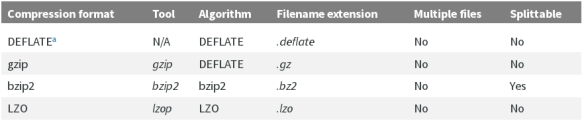
hadoop_spplitable_formats(a)  DEFLATE is a compression algorithm whose standard implementation is zlib. There is no commonly available command-line tool for producing files in DEFLATE format, as gzip is normally used. (Note that the gzip file format is DEFLATE with extra headers and a footer.) The .deflate filename extension is a Hadoop convention.

Source: Hadoop The Definitive Guide.


yarn: change configuration and restart node manager on a live cluster


This procedure is to change Yarn configuration on a live cluster, propagate the changes to all the nodes and restart Yarn node manager.

Both commands are listing all the nodes on the cluster and then filtering the DNS name to execute a remote command via SSH. You can customize the sed filter depending on your own needs. This is filtering DNS names with Elastic Mapreduce format (ip-xx-xx-xx-xx.eu-west-1.compute.internal).

1. Upload the private key (.pem) file you are using to access the master node on the cluster. Change the private key permissions to at least 600 (i.e chmod 600 MyKeyName.pem)

2.  Change /conf/yarn-site.xml and use a command like this to populate the change across the cluster.

yarn node -list|sed -n "s/^\(ip[^:]*\):.*/\1/p" | xargs -t -I{} -P10 scp -o StrictHostKeyChecking=no -i ~/MyKeyName.pem ~/conf/yarn-site.xml hadoop@{}://home/hadoop/conf/

3. This command will restart Yarn Node Resource manager on all the nodes.

 yarn node -list|sed -n "s/^\(ip[^:]*\):.*/\1/p" | xargs -t -I{} -P10 ssh -o StrictHostKeyChecking=no -i ~/MyKeyName.pem hadoop@{} "yarn nodemanager stop"


Actualizar OpenSSL / Update to 1.0.1g


Actualizar OpenSSL a la utilma version en tres pasos:

1) compilamos e instalamos la ultima version de openssl version:
$ sudo curl https://www.openssl.org/source/openssl-1.0.1g.tar.gz | tar xz && cd openssl-1.0.1g && sudo ./config && sudo make && sudo make install_sw

2) Reemplazamos la vieja libreria openssl por la nueva con un link simbolico
$ sudo ln -sf /usr/local/ssl/bin/openssl `which openssl`

3) Probamos:

$ openssl version

Deberia devolver:

OpenSSL 1.0.1g