Masa para Tapas caseras de Empanadas o Tartas


Ingredientes

1Kg the Harina
1 cda de azucar
1 cda de sal fina
100 g de manteca
1/2 litro de agua

Preparación

Fundimos la manteca y entibiamos el agua.

Mezclamos el agua con la manteca.

Armamos una corona.Agregamos la sal, el azucar y el agua tibia con manteca.

Amasamos hasta obtener una masa homogenea.

Estiramos y cortamos la masa en discos del tamaño deseado.

empanadas-2014-07-13-12-39-09

empanadas-2014-07-13-13-28-38

empanadas-2014-07-13-13-41-55

yarn: execute a script on all the nodes in the cluster


This is more Linux script related, but, sometimes we have a Hadoop (YARN) cluster running and we need to run a post install script or activity that executes on all the nodes in the cluster:

for i in `yarn node --list | cut -f 1 -d ':' | grep "ip"`; do ssh -i your-key.pem hadoop@$i 'hadoop fs -copyToLocal s3://mybucket/myscript.sh | chmod +x /home/hadoop/myscript.sh | /home/hadoop/myscript.sh' ; done

Note: we will need the your-key.pem file in the master node.

HDFS: changing the replication factor


The replication factor is a property that can be set in the HDFS configuration file that will allow you to adjust the global replication factor for the entire cluster. For each block stored in HDFS, there will be n – 1 duplicated blocks distributed across the cluster.

File conf/hdfs-site.xml is used to configure HDFS. Changing the dfs.replication property in hdfs-site.xml will change the default replication for all files placed in HDFS.

<name>dfs.replication<name> 
<value>3<value>

You can also change the replication factor on a per-file basis using the Hadoop FS shell.

To set the replication factor to 1 to all the files in a directory, you will need:

hadoop fs -setrep -w 1 -R /my/dir

Indexing Common Crawl Metadata on Elasticsearch using Cascading


If you want to explore how to parallelize the data ingestion into Elasticsearch, please have a look to this post I have written for Amazon AWS:

http://blogs.aws.amazon.com/bigdata/post/TxC0CXZ3RPPK7O/Indexing-Common-Crawl-Metadata-on-Amazon-EMR-Using-Cascading-and-Elasticsearch

It explains how to index Common Crawl metadata into Elasticsearch using Cascading connector directly from the S3 data source.

Cascading Source Code is available here.

How Ganglia works


What is Ganglia ?

Ganglia is a scalable distributed monitoring system for high-performance computing systems such as clusters and Grids. It is based on a hierarchical design targeted at federations of clusters. It leverages widely used technologies such as XML for data representation, XDR for compact, portable data transport, and RRDtool for data storage and visualization.

ganglia

Ganglia has the following main components:

1. Ganglia Monitoring Daemon (gmond)
Gmond stands for ganglia monitoring daemon. It is a lightweight service that is installed on every machine you’d like to monitor.
Gmond has four main responsibilities:

1.1 Monitor changes in host state.
1.2 Announce relevant changes.
1.3 Listen to the state of all other ganglia nodes via a unicast or multicast channel.
1.4 Answer requests for an XML description of the cluster state.

Each gmond transmits information in two different ways:

a. Unicasting or Multicasting host state in external data representation (XDR) format using UDP messages.
b. Sending XML over a TCP connection.

Notes about gmond:

– The main configuration file of gmond is /etc/gmond.conf
– gmond is multithreaded

Test gmond installation:

telnet localhost 8649

You should see XML that conforms to the ganglia XML spec.

Or

gmond -d 5 -c /etc/ganglia/gmond.conf

to see the service in debugging mode.

2. Ganglia Meta Daemon (gmetad)
The ganglia meta daemon (gmetad) is a service that collects data from other gmetad and gmond sources and stores their state to disk in indexed round-robin (RRD) databases. Gmetad provides a simple query mechanism for collecting specific information about groups of machines.

Notes about gmetad:

– the main configuration file for gmetad is /etc/gmetad.conf
– You need atleast one gmetad daemon installed node on each cluster.
– This gemetad daemon is the one who collects data send by gmond daemon.
– All other nodes other than the one in the cluster, do not require gmetad daemon to be installed.
– If you need the machine containing gmetad configured as node to be monitored, then in that case you need to install both gmond and gmetad on the machine.

Test gmetad installation:

telnet localhost 8651

3. Ganglia PHP Web Front-end
The Ganglia web front-end provides a view of the gathered information via real-time dynamic web pages. Most importantly, it displays Ganglia data in a meaningful way for system administrators and computer users using PHP.

how ganglia works

In this picture we can see  gmond installed in each node and sending data to gmetad installed in a “gmetad node”. We can have one or more  “nodes with gmetad” in a cluster.

gmetad collects all the data from gmond and stores it in rrdtool database. Which is then collected by the php scripts, and showed as the first picture in this article.

4. Gmetrics
The ganglia metric tool is a commandline application that you can use to inject custom made metrics about hosts that are being monitored by ganglia. It has the ability to spoof messages as coming from a different host in case you want to capture and report metrics from a device where you don’t have gmond running (like a network or other embedded device).

5. Gstat
The ganglia stat tool is a commandline application that you can use to query a gmond for metric information directly.

6. RRD tool:

Ganglia uses RRD tool to store its data and visualization.

RRD tool is the short form for Round Robin Data base tool. This is a wonderful and useful open source data base tool. In this RRD stores data in time-series. For example RRD tool will store all values of CPU load at a certain time interval and then graph these data according to time.

Instalar nuevos mapas en GPS Garmin


Estos son los pasos para instalar mapas de cualquier país del mundo en un GPS Garmin:

1) De la página de Garmin descargamos el Garmin Express para Windows

1.2) Instalamos y abrimos. Conectamos el GPS y lo añadimos como dispositivo.

2) Desde la página de Garmin también, descargamos el BaseCamp e instalamos.

3) Desde el proyecto OpenStreeMap descargamos los mapas de la zona que deseamos.
3.1)  Seleccionamos “Generic Routable”
3.2)  Seleccionamos un Pais/estado del dropdown box y descargamos el mapa. Este es un ejecutable que descomprimira en C:\Garmin\Maps\ZonaElegida

4) Abrimos el BaseCamp. En Mapas veremos el mapa descargado.

garmin_basemap

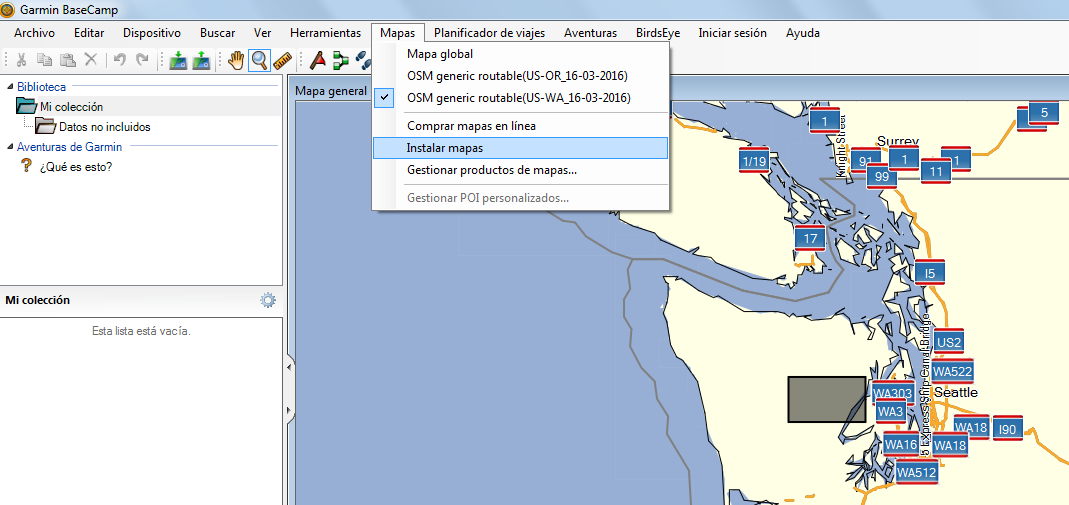
5) Conectamos el GPS con el cable USB. En BaseCamp seleccionamos del menú Mapas –> Instalar Mapas.

Una vez finalizada la carga, tendremos los mapas actualizados y listos para usar.

Update: Como opción rápida, en vez de utilizar BaseCamp, desde openstreetmap, podemos descargar directamente el archivo osm_generic_gmapsupp.zip y colocarlo (descomprimido) en el disco del dispotivo. En los ultimos modelos, va en la carpeta  Map.

HBase useful commands


1) Connect to HBase. Connect to your running instance of HBase using the hbase shell command, located in the bin/ directory of your HBase install.

$ ./bin/hbase shell 
hbase(main):001:0>

2) Create a table. Use the create command to create a new table. You must specify the table name and the ColumnFamily name.

hbase(main):001:0> create 'test', 'cf' 
0 row(s) in 0.4170 seconds 

=> Hbase::Table - test

3) List Information About your Table.

hbase(main):002:0> list 'test'
TABLE 
test 
1 row(s) in 0.0180 seconds 

=> ["test"]

4) Put data into your table. Here, we insert three values, one at a time. The first insert is at row1, column cf:a, with a value of value1. Columns in HBase are comprised of a column family prefix, cf in this example, followed by a colon and then a column qualifier suffix, a in this case.

hbase(main):003:0> put 'test', 'row1', 'cf:a', 'value1' 
0 row(s) in 0.0850 seconds 

hbase(main):004:0> put 'test', 'row2', 'cf:b', 'value2' 
0 row(s) in 0.0110 seconds 

hbase(main):005:0> put 'test', 'row3', 'cf:c', 'value3' 
0 row(s) in 0.0100 seconds

5) Scan the table for all data at once. One of the ways to get data from HBase is to scan. Use the scan command to scan the table for data. You can limit your scan, but for now, all data is fetched.

hbase(main):006:0> scan 'test' 
ROW COLUMN+CELL
 row1 column=cf:a, timestamp=1421762485768, value=value1
 row2 column=cf:b, timestamp=1421762491785, value=value2
 row3 column=cf:c, timestamp=1421762496210, value=value3
3 row(s) in 0.0230 seconds

6) Get a single row of data.

hbase(main):007:0> get 'test', 'row1'
COLUMN CELL
 cf:a timestamp=1421762485768, value=value1 

1 row(s) in 0.0350 seconds

7) Disable a table. If you want to delete a table or change its settings, as well as in some other situations, you need to disable the table first, using the disable command. You can re-enable it using the enable command.

hbase(main):008:0> disable 'test' 
0 row(s) in 1.1820 seconds 

hbase(main):009:0> enable 'test' 
0 row(s) in 0.1770 seconds

8) Disable the table again if you tested the enable command above:

hbase(main):010:0> disable 'test' 
0 row(s) in 1.1820 seconds

9) Drop the table.

hbase(main):011:0> drop 'test' 
0 row(s) in 0.1370 seconds

10) Backup and restore to S3:

10.1) BackUp:

hadoop jar /home/hadoop/lib/hbase.jar emr.hbase.backup.Main --backup --backup-dir s3://your-bucket/backups/j-XXXX

10.2) Restore:

hadoop jar /home/hadoop/lib/hbase.jar emr.hbase.backup.Main --restore --backup-dir s3://your-bucket/backup-hbase/j-XXXX'

10.3) Import:

hbase org.apache.hadoop.hbase.mapreduce.Import test s3n://your-bucket/backup-hbase/j-XXXX

11) Backup and Restore with Distcp and S3distCp:

11.1) Using Distcp method to backup to S3:

hadoop distcp hdfs://ec2-52-16-22-167.eu-west-1.compute.amazonaws.com:9000/hbase/ s3://your-bucket/hbase/201502280715/

11.2) Using Distcp to backup to another cluster:

hadoop distcp hdfs://ec2-52-16-22-167.eu-west-1.compute.amazonaws.com:9000/hbase/ hdfs://ec2-54-86-229-249.compute-1.amazonaws.comec2-2:9000/hbase/

11.3) Using S3distcp method to backup to S3:

hadoop jar ~/lib/emr-s3distcp-1.0.jar --src hdfs:///hbase/ --dest s3://your-bucket/hbase/201502280747/